How to Get
Voice Chat
on Roblox
You must be 13 or older · A valid government-issued photo ID · A smartphone (for QR code scanning during age verification) · A Roblox account
Step 1 — Open Roblox Settings
This works the same on PC and mobile.
Head to the Roblox website or open the Roblox app on your phone — either works for this guide.
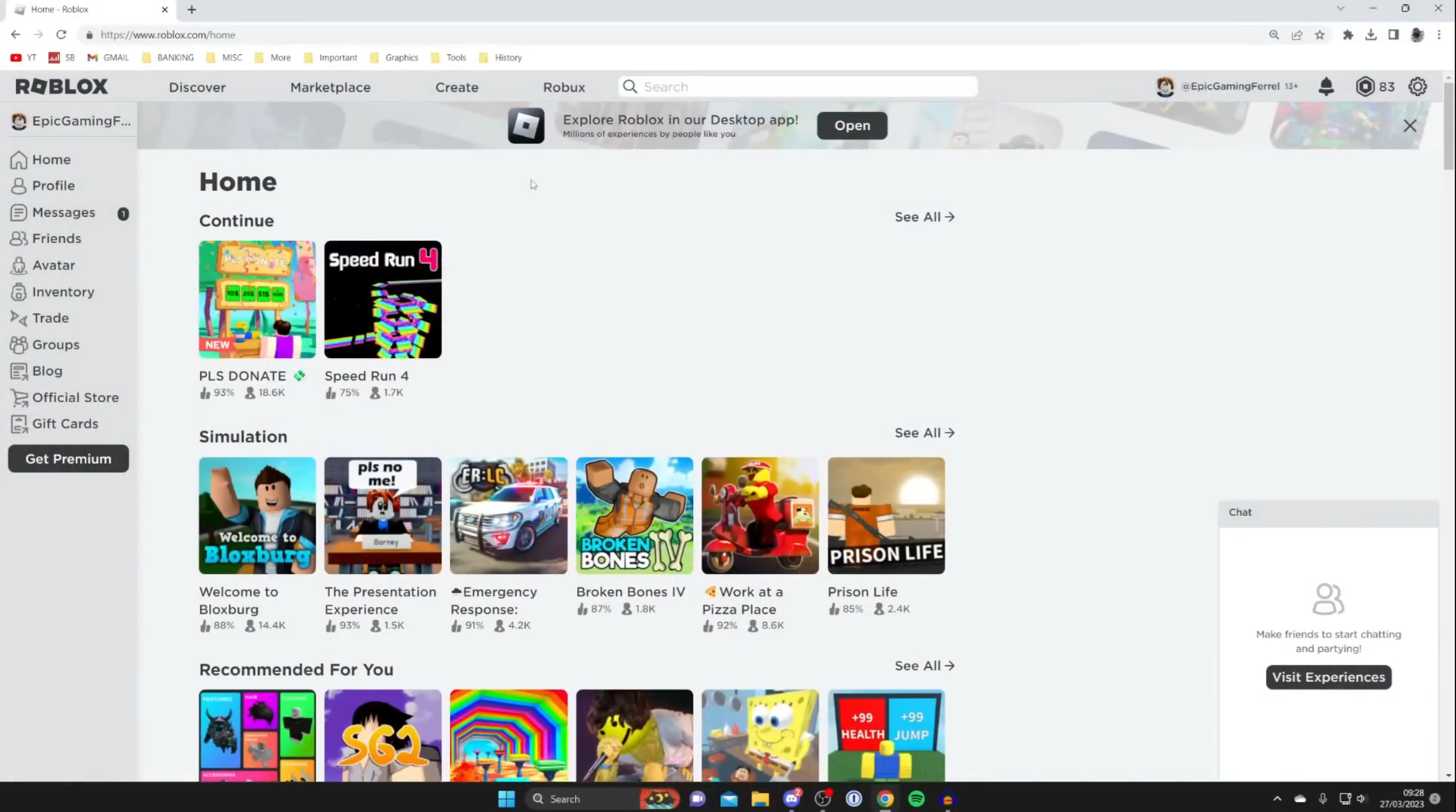
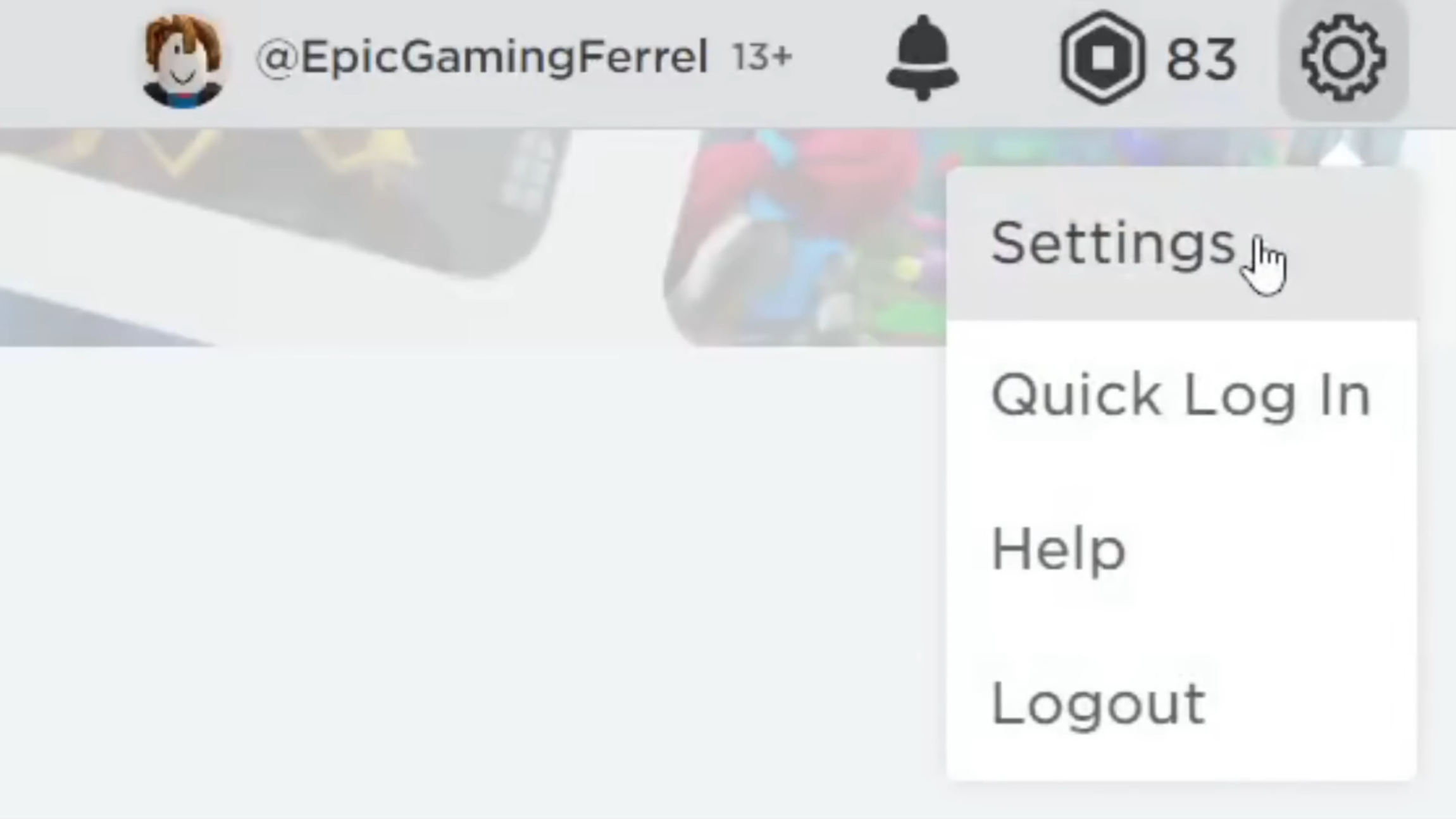
PC: Click the gear/cog icon in the top right
corner.
Mobile: Tap the three dots (⋯)
in the bottom right, then scroll down to find Settings in the
menu.
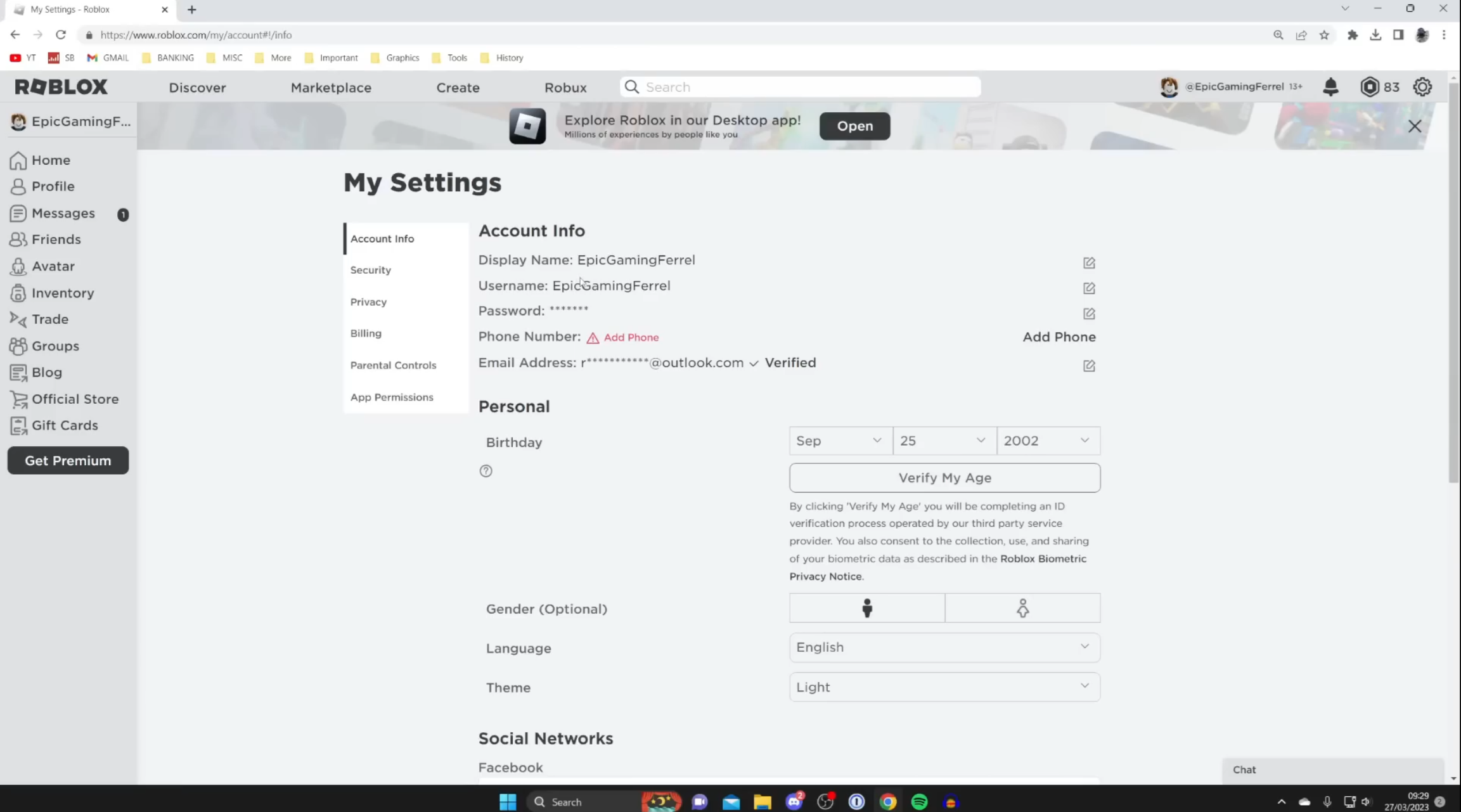
In the left sidebar, click Account Info. This is where the age verification option lives.
Step 2 — Verify Your Age
Roblox VC requires you to be 13+. You'll verify this with a real ID — it's a quick automated process.
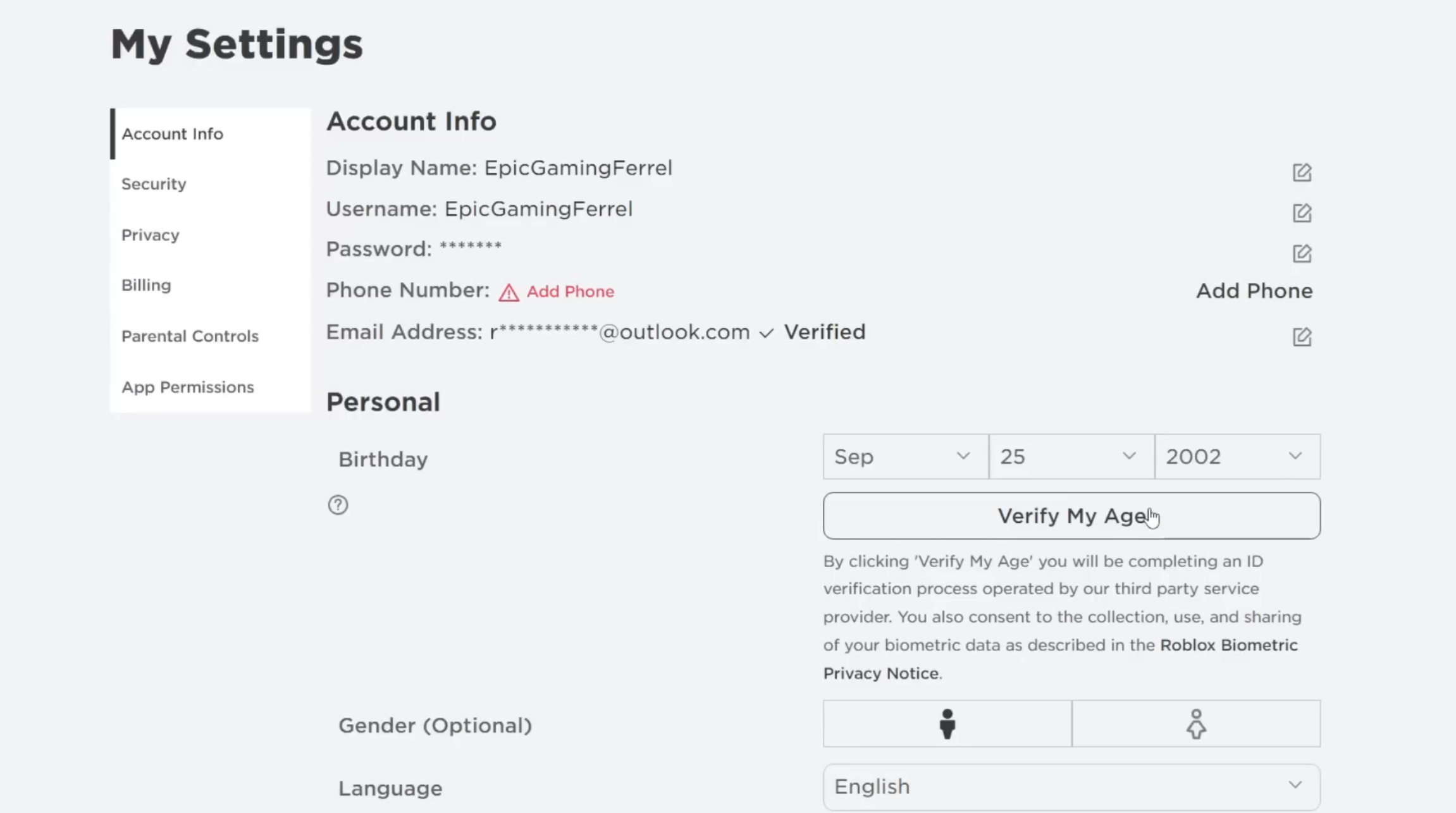
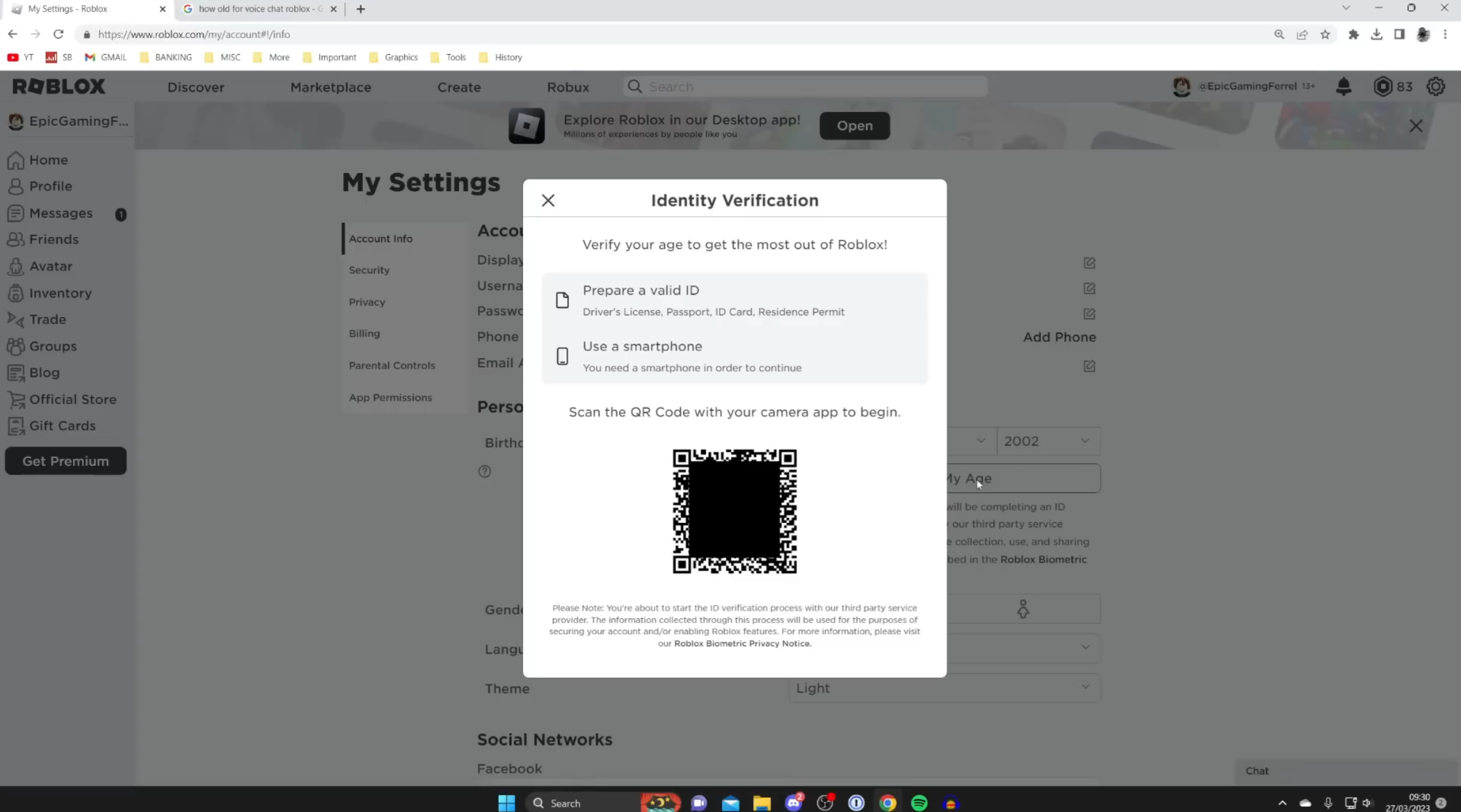
In Account Info, find and click the Verify Age button. An identity verification pop-up will appear.
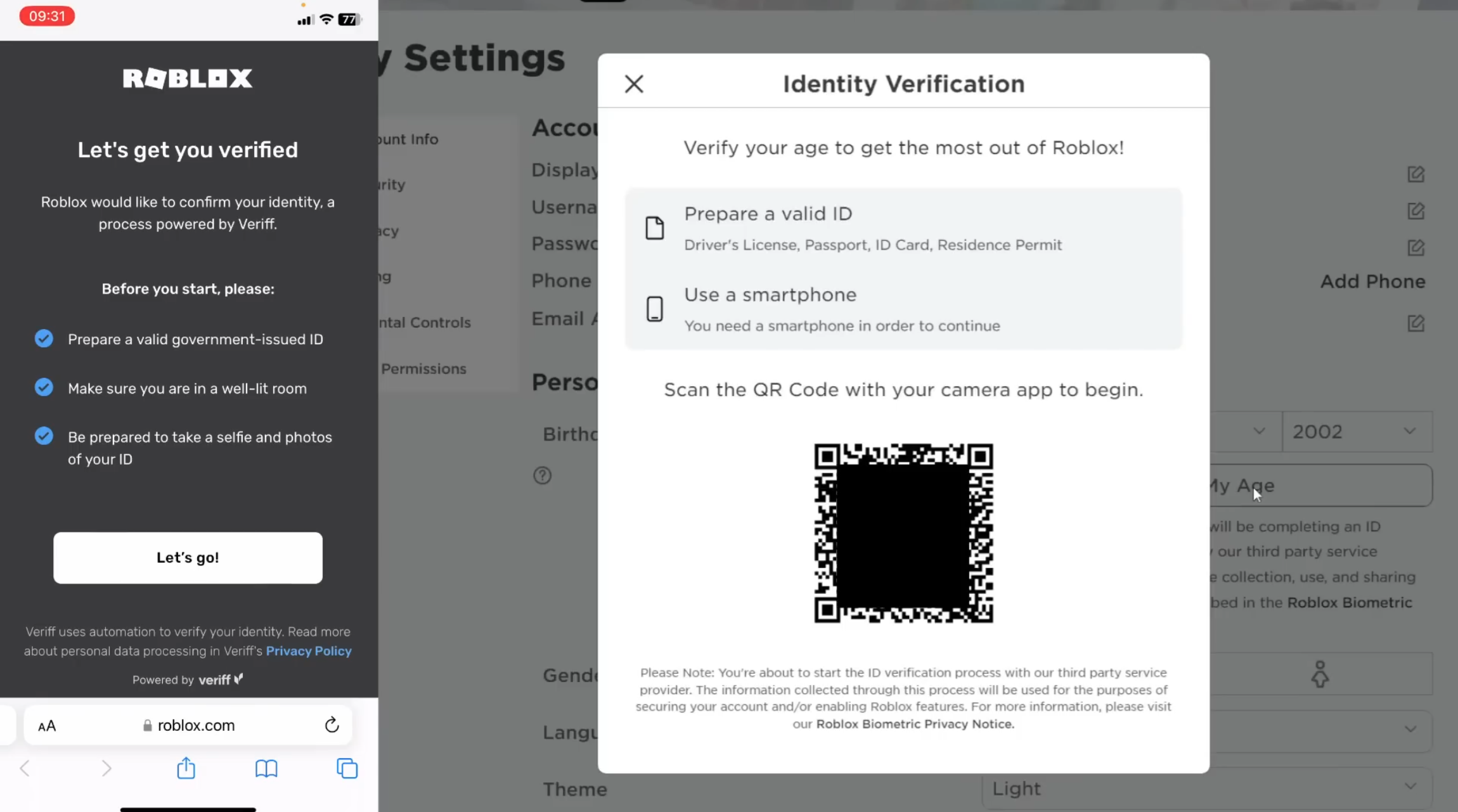
Open your phone's camera app and point it at the QR code on screen. Tap the link that pops up. If your camera doesn't scan QR codes, grab a free QR scanner app from the App Store or Play Store.
Tap Let's Go, allow camera access, then take a clear photo of your government-issued photo ID. Then take a selfie. Make sure you're in good lighting — the process is fully automatic and only takes seconds.
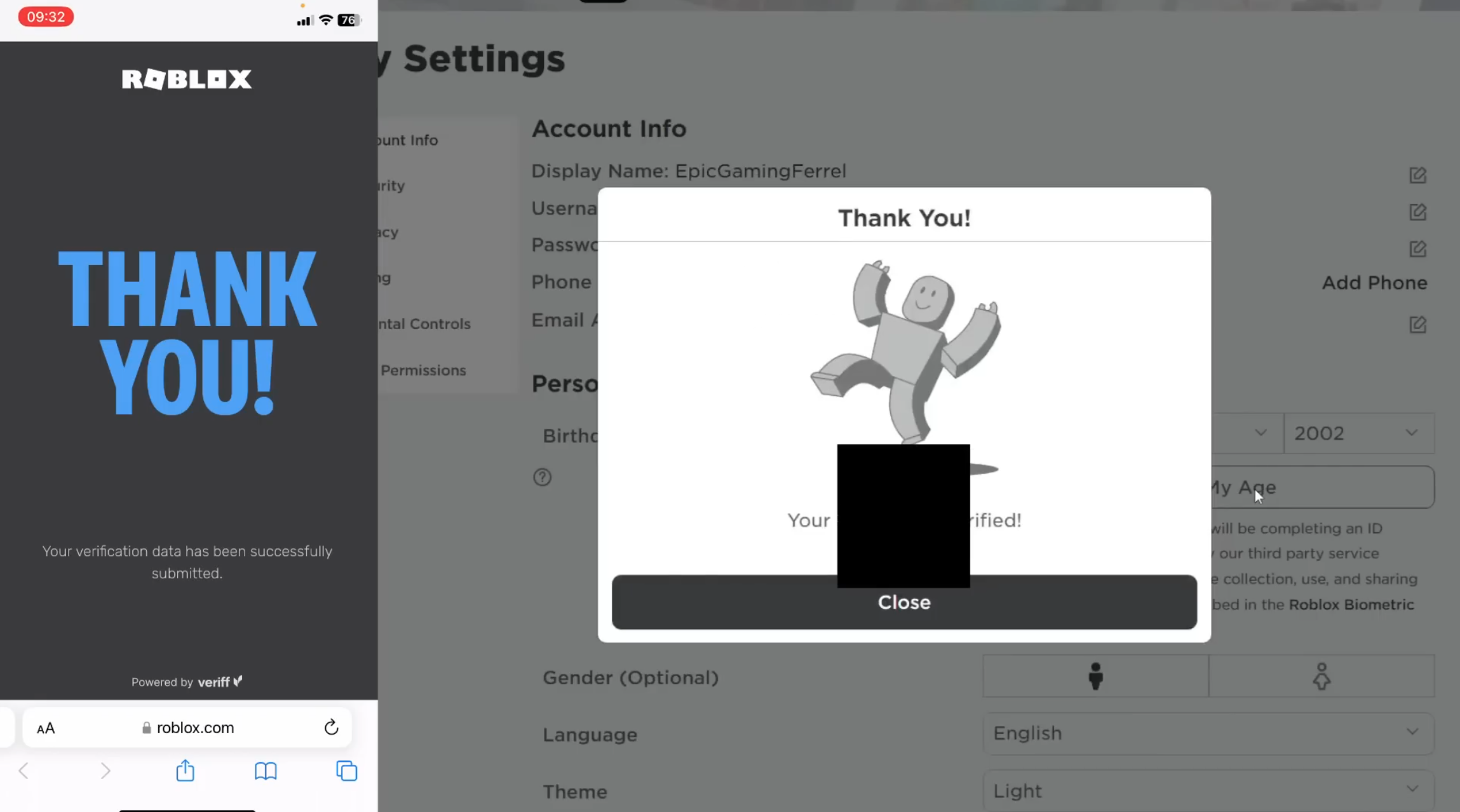
Within a few seconds it'll say "Your age is now verified." Tap Close and head back to your computer (or stay on mobile — both work).
Step 3 — Enable Voice Chat in Roblox
Now that your age is verified, turning on Roblox VC takes one more step.
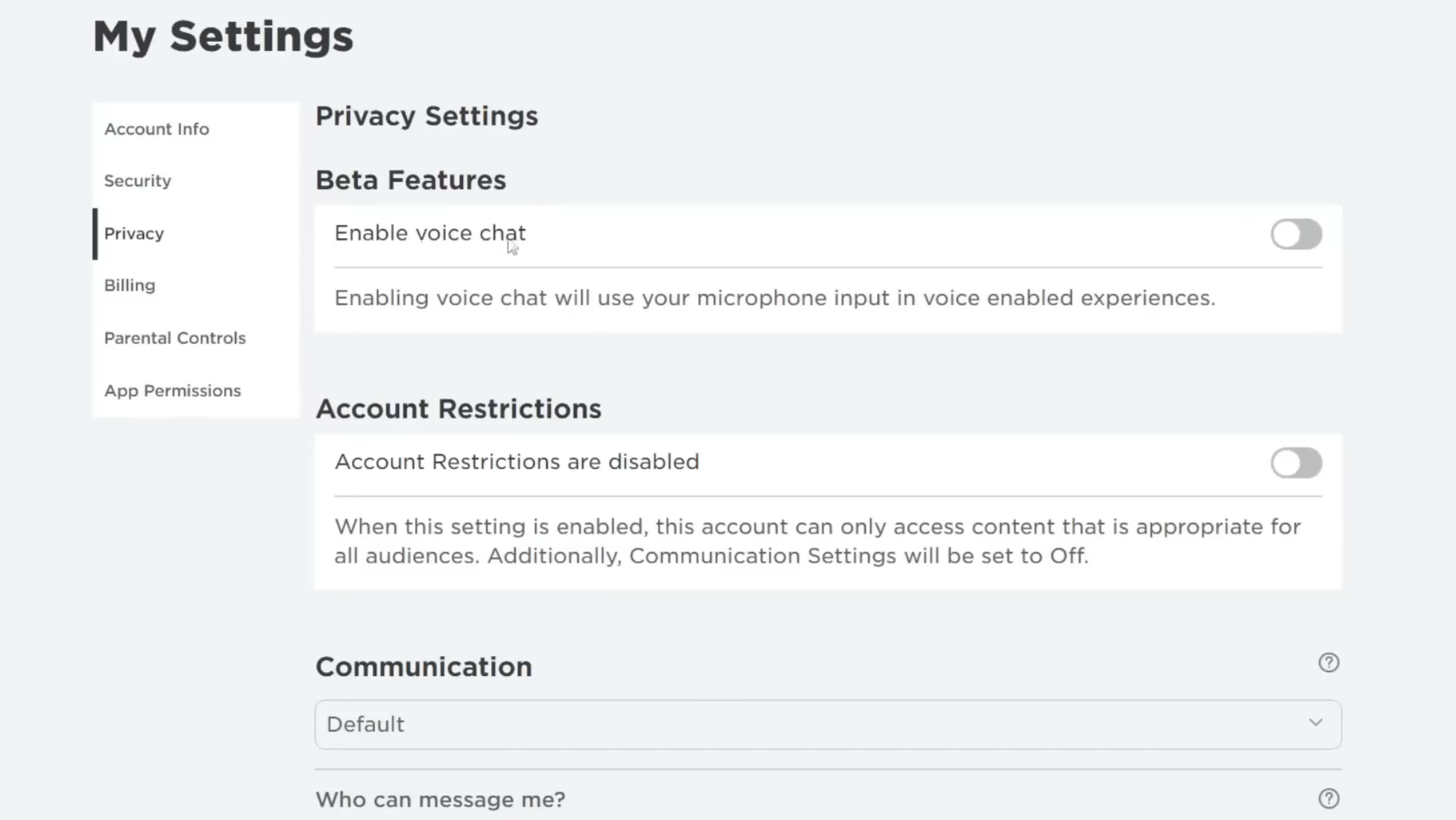
In Roblox Settings, click Privacy in the left sidebar. You may need to refresh the page first for your verified age to show up.
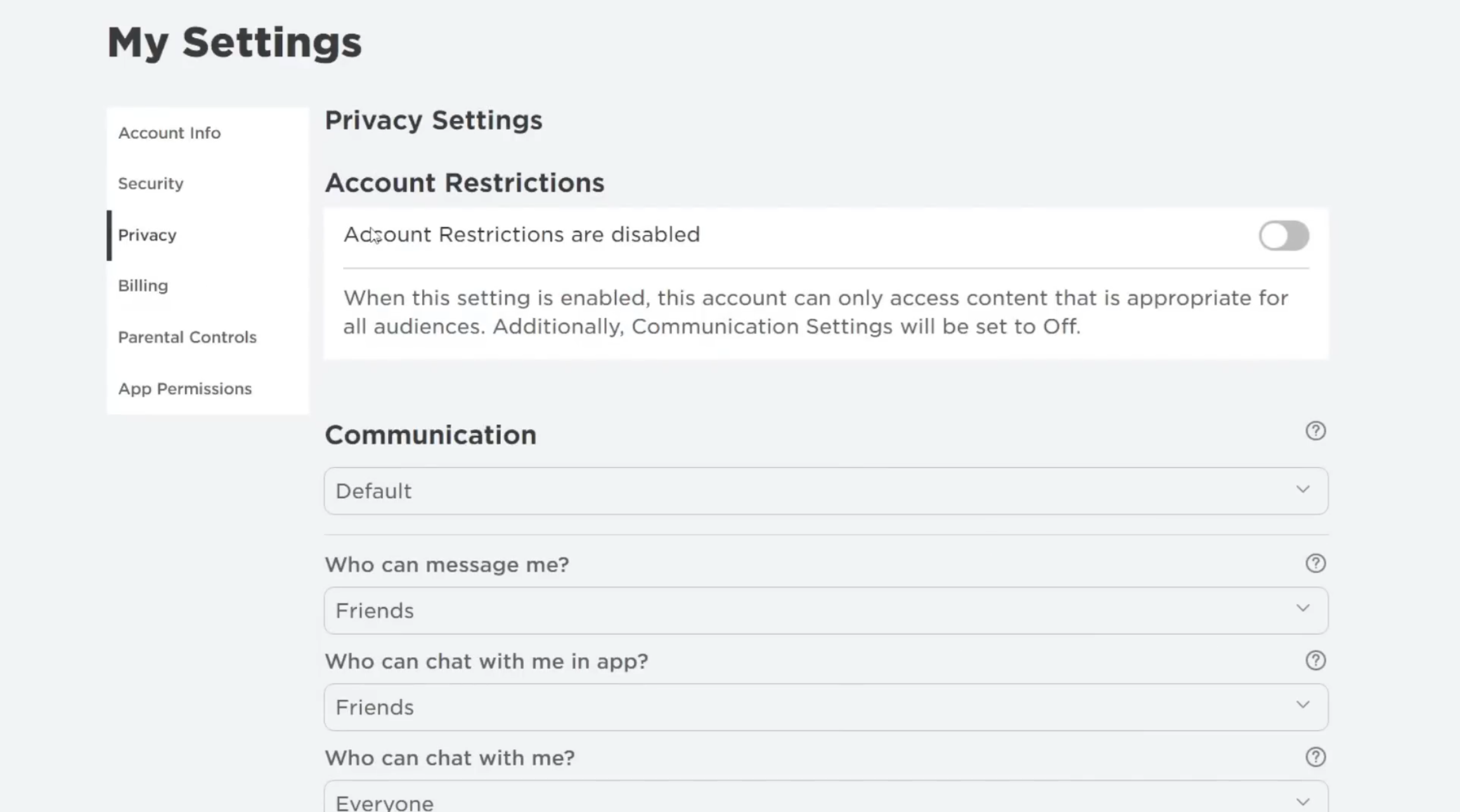
At the top of the Privacy page under Beta Features, you'll see the Enable Voice Chat toggle. Switch it on, read and agree to the terms, then tap Enable.
Mic Not Working? Fix It Here
If your mic isn't picking up in-game, here's the quick fix:
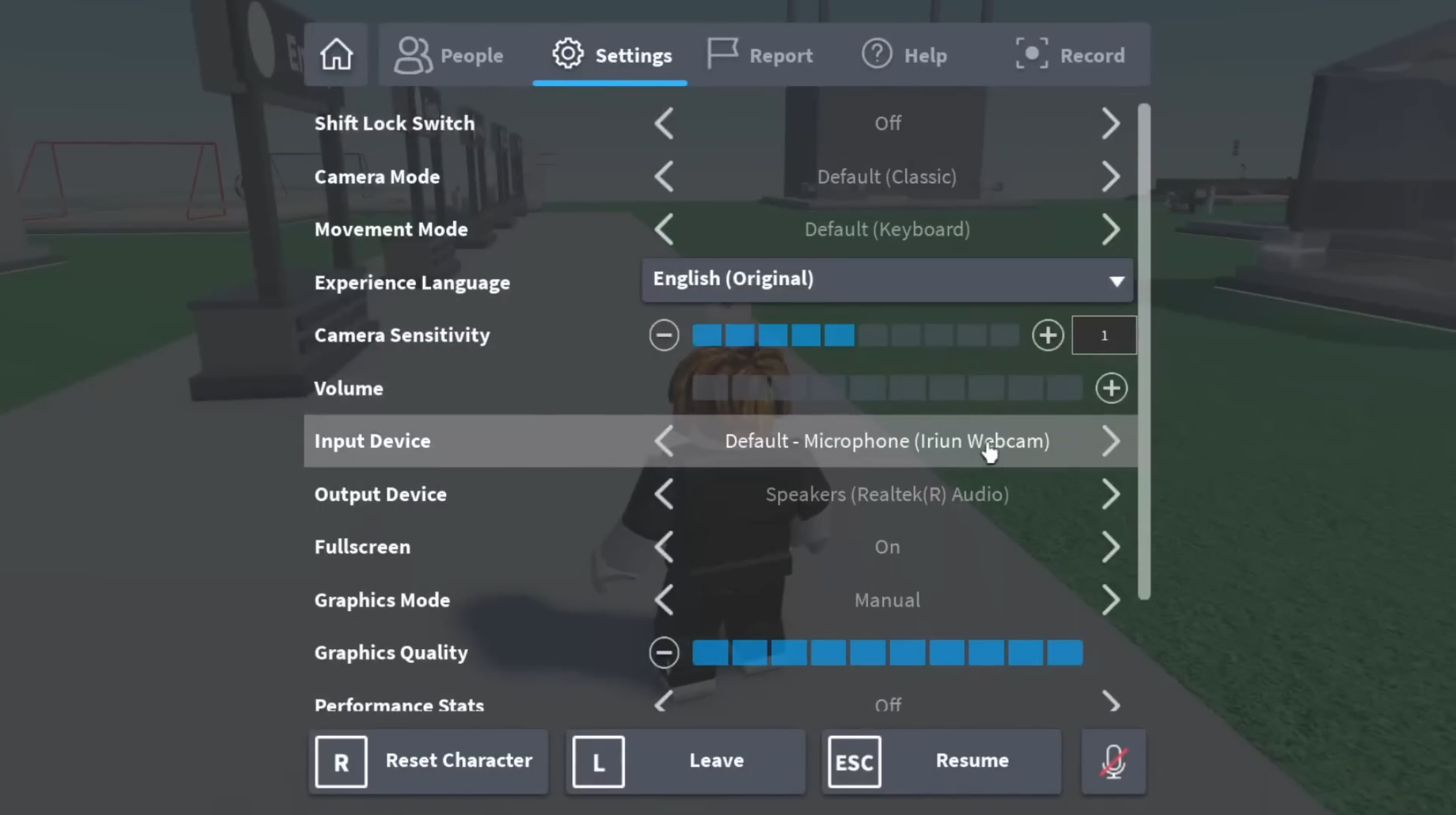
Press Escape or tap the Roblox icon in the top left to pause the game, then go to Settings.
Under the audio section, change the Input Device to your actual microphone. Do the same for Output if needed, then unmute yourself.
FAQs
Verify your age (13+) using a government ID through Account Info in Settings, then enable the Voice Chat toggle under Privacy → Beta Features.
Yes. The process is identical on mobile — tap the three dots, go to Settings → Account Info, and follow the same age verification steps.
You must be 13 or older. Roblox verifies this with a government-issued photo ID during the setup process.
You likely haven't completed age verification yet, or the page needs a refresh after verifying. Complete the ID check in Account Info first, refresh the page, then check Privacy again.
No — only games where the developer has enabled it. If you don't see a mic icon when joining, that game doesn't support voice chat yet.
That's the full guide to getting voice chat on Roblox. Verify your age, flip the toggle in Privacy, and you're ready to talk. If your mic acts up in-game, just check your audio input device in the game settings and you're good to go.